Changing settings from the physical or remote console connection
Changing the IP for the Service Console must be done from the physical console or through a remote console session. If you make changes through a network connection such as SSH, network connectivity to the Service Console disconnects because the Service Console's network interface changes.
- Run this command to set the IP address:
[root@server root]# esxcfg-vswif -i a.b.c.d -n w.x.y.z vswif0 , where a.b.c.d is the IP address and w.x.y.z is the subnet mask.
Note: In this example, v swif0 is the Service Console adapter that is the interface to which you are applying the IP address change.
- Open the /etc/hosts file with a text editor and modify it so that it reflects the correct IP address and hostname.
- To change the default gateway address and the hostname, edit the /etc/sysconfig/network file and change the GATEWAY and HOSTNAME parameters to the proper values.
- For the changes to take place, reboot the host or restart the network service with the command:
[root@server root]# service network restart
Note: This command breaks any current network connections to the Service Console, but virtual machines continue to have network connection. If the ESX host is managed by VirtualCenter or vCenter Server, you may have to remove and re-add the host to the inventory. For more information, see ESX not working properly in VirtualCenter after IP address change (1005633).
Note: If the changed IP does not persist across a reboot, try deleting and recreating the Service Console vswif management interface. For more information, see Recreating Service Console networking from the command line (1000266).
Changing the hostname without rebooting
To dynamically change the hostname, run the command:
[root@server root]# hostname newname
Note: This command creates a temporary hostname change. This change is lost when the system is rebooted.
Changing the DNS server settings
To change the DNS server settings, update the nameserver IPs and search domain the /etc/resolv.conf file.
Changing settings in VMware vSphere or Infrastructure Client
To change the hostname, domain, DNS servers, and default gateway in VMware vSphere or Infrastructure Client:
-
Highlight the ESX host and click the Configuration tab.
-
Click DNS and Routing.
-
Click Properties.
-
To change the hostname, domain, and DNS servers, click the DNS Configuration tab and enter the appropriate values.
Note: Disable VMware High Availability if you do not want virtual machines to failover during the hostname IP change.
-
To change the default gateway, click the Routing tab and enter the appropriate value.
-
Reboot the ESX host for the changes to take effect.
-
Reconnect the ESX host to vCenter Server with the new IP address.
Nachfolgend eine Liste mit diversen VMware ESX Shell-Befehlen:
| Befehl |
Beschreibung |
| esxcfg-firewall -q |
Zeigt alle offenen Ports der Firewall an. |
| esxcfg-firewall –enableService nfsClient |
Öffnet für den NFS-Client benötigte Firewall-Ports 111 und 2049 auf TCP und UDP. |
| esxcfg-firewall –allowOutgoing |
Alle ausgehende Ports öffnen |
| esxcfg-firewall –allowIncoming |
Alle eingehenden Ports öffnen |
| lsof -Pni |
zeig alle laufenden Anwendungen (Ports) |
Beim öffnen Ihrer Windows-Bibliothek kommt einer der folgenden Fehler:
- “Music.library-ms” kann nicht länger geöffnet werden.
- “Documets.library-ms” kann nicht länger geöffnet werden.
- “Pictures.library-ms” kann nicht länger geöffnet werden.
- “Videos.library-ms” kann nicht länger geöffnet werden
Lösung:
Klickt mit der rechten Maustaste auf die Bibliothek welche den Fehler verursacht und wählt "löschen"
.jpg)
Das Löschen mit "JA" bestäigen!
Die Daten werden nicht gelöscht. Es wird lediglich die Verknüpfung auf die Daten gelöscht!
Nun mit einem Rechtklick auf Bibliotheken klicken und die Optioen "Standartbibliotheken wiederherstellen" wählen.
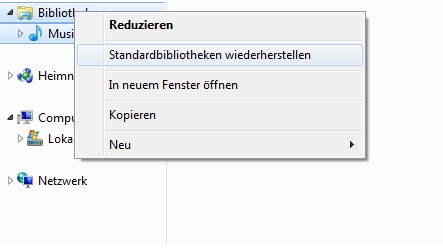
Der Fehler sollte nun nicht mehr erscheinen.
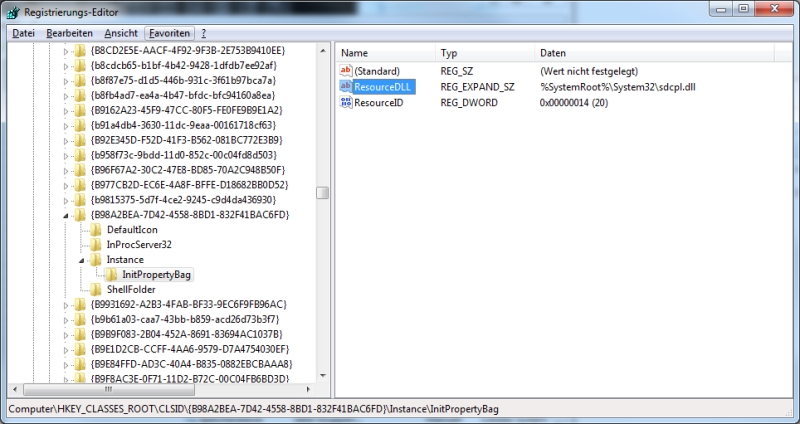
Wenn man auf einem Windows 7 PC "Acronis True Image 2011" installiert hat und diese deinstalliert, kann es passieren, dass die Windows Funktion "Sicherun und Wiederherstellen" sich nicht öffnen lässt.
Dieser Fehler lässt sich wie folgt beheben:
In der Tat gibt es für die RUNDEN-Formel keine Option, mit der auf 0,5 Stellen gerundet werden kann, genau das aber ist in der Schweiz mit dem 5-Rappen-Stück als kleinster Währungseinheit oft wünschenswert. Über einen Trick funktionierts: Verdoppeln Sie den Wert, den Sie runden wollen, und runden das Ergebnis auf eine ganze Stelle. Teilen Sie zum Schluss den gerundeten Wert wieder durch zwei. An Ihrem Beispiel wird das deutlich: 2.44 mal 2 = 4.88; dieser Wert wird gerundet auf 4.90, und schliesslich geteilt durch 2; macht 2.45. In Excel lautet dafür die entsprechende Formel wie folgt: =RUNDEN(2.44*2;1)/2. Achten Sie auf die richtige Position der Klammern, welche die Bedingung dafür sind, dass Excel den verdoppelten Wert rundet und erst danach wieder durch zwei teilt. Anstatt der Zahl 2.44 können Sie auch jede beliebige Zelladresse oder andere Formelberechnungen verwenden; letztere gehören allerdings in ein weiteres Klammerpaar.
Eine solche Ansicht können Sie jedoch selbst definieren. Dazu gehen Sie so vor:
1. Wechseln Sie in das E-Mail-Modul und öffnen Sie das Register "Ansicht“.
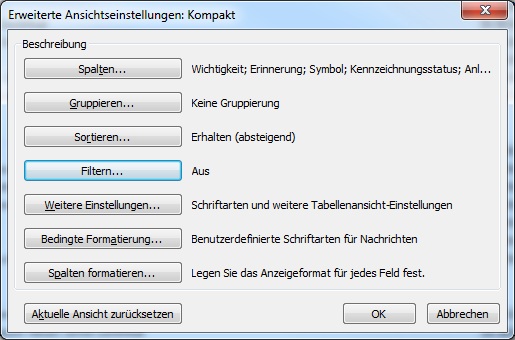
2. Klicken Sie hier auf "Aktuelle Ansicht“ und dann auf "Ansichtseinstellungen“.
3. Klicken Sie auf „Filtern“.
4. Klicken Sie auf die Registerkarte "Weitere Optionen".
5. Aktivieren Sie die Checkbox "Nur solche Elemente:" und wählen Sie den Eintrag "Ungelesen" aus.
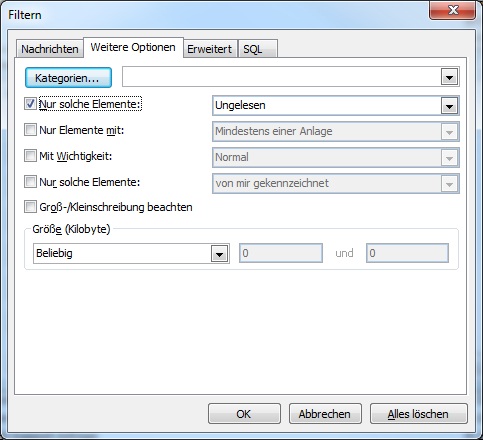
6. Klicken Sie zum Schluss auf OK.
This topic provides information about how to troubleshoot error 0x8004010F when Microsoft Office Outlook 2007 clients fail to download the offline address book (OAB). You may receive the following error message: "Task ‘Microsoft Exchange’ reported error (0x8004010F): ‘The operation failed. An object cannot be found.’
This issue may occur when Outlook 2007 is started on a client that is not a member of a domain. The service connection point is not available to deliver the offline address book, and Outlook tries to locate the Autodiscover service by using Domain Name System (DNS). For Outlook to locate the Autodiscover service by using DNS, there must be a host record in DNS for the Autodiscover service that maps the entry point, or public IP address, to the Client Access server where the Autodiscover service is hosted.
Before You Begin
To perform this procedure, the account you use must be delegated membership in the local Administrators group. For more information about permissions, delegating roles, and the rights that are required to administer Microsoft Exchange Server 2007, see Permission Considerations.
Resolution
To resolve this issue, add a host (A) record in DNS for Autodiscover.domain.com and point to the Exchange 2007 server that has the Client Access server role. For example, if the user’s primary SMTP address is user@contoso.com, the host (A) record you need to add is: autodiscover.contoso.com A <IPaddress>. For more information about adding a host (A) record, see Add a host (A) record to corporate DNS for a federation server.
Quelle:
http://technet.microsoft.com/en-us/library/cc411331(EXCHG.80).aspx