Archiv

Archiv für die Kategorie ‘Server’

Exchange 2010 – Relay mit Authentifizierte Benutzer

26. September 2011 Keine Kommentare

Exchange Management Shell öffnen und den nachfolgenden Befehl eingeben:

Englisch:
Get-ReceiveConnector -Identity NeuerEmpfangsconnector | add-ADPermission -user "NT AUTHORITY\Authenticated Users" -ExtendedRights "Ms-Exch-SMTP-Accept-Authoritative-Domain-Sender"

Deutsch:
Get-ReceiveConnector -Identity NeuerEmpfangsconnector | add-ADPermission -user "Authentifizierte Benutzer" -ExtendedRights "Ms-Exch-SMTP-Accept-Authoritative-Domain-Sender"


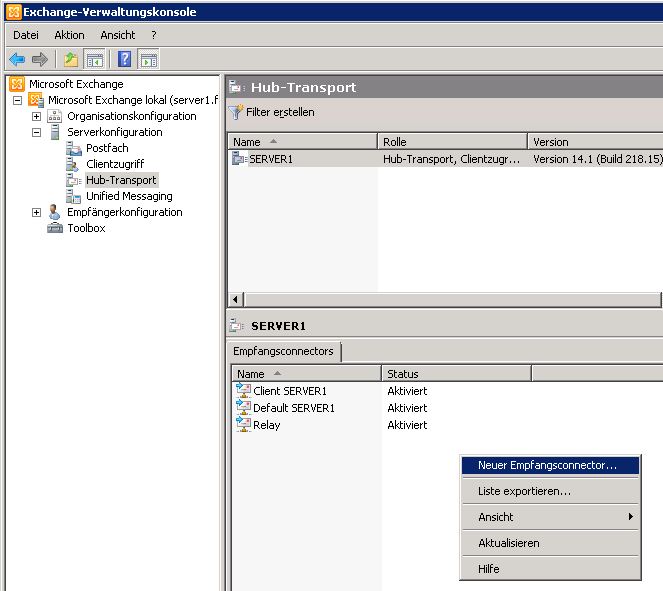
Exchange Management Console öffnen:

Serverkonfiguration -> Hub-Transport öffnen

Server auswählen

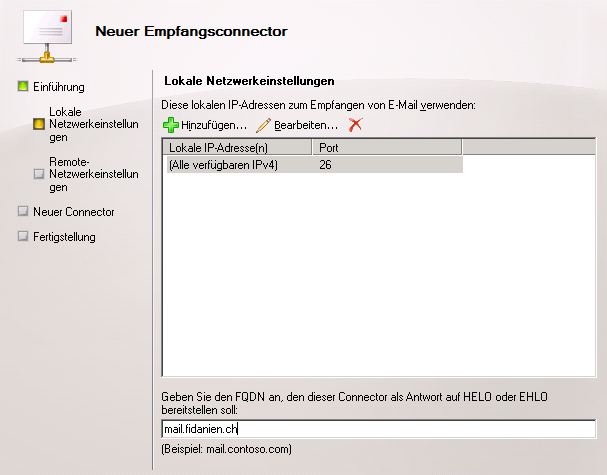
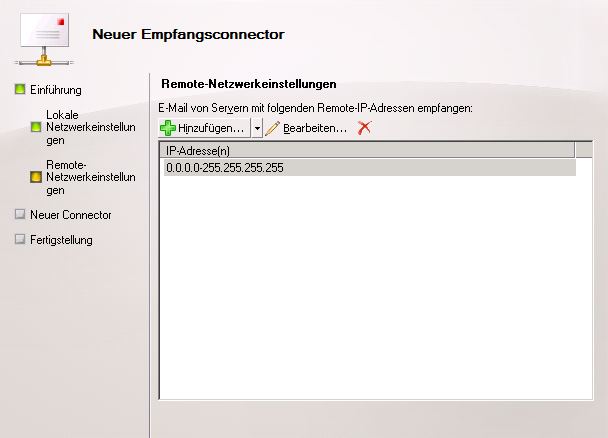
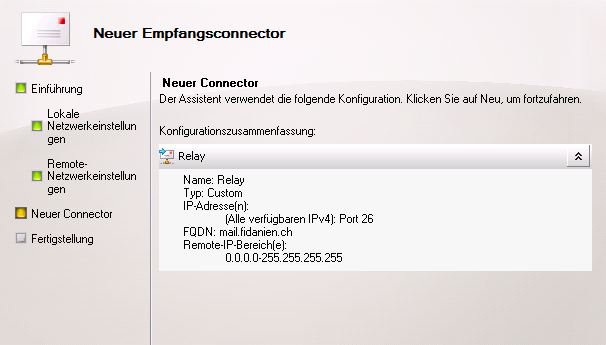
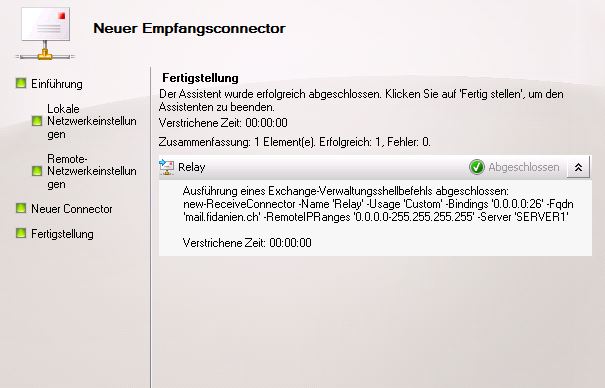
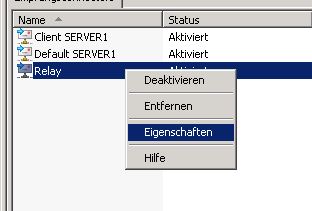
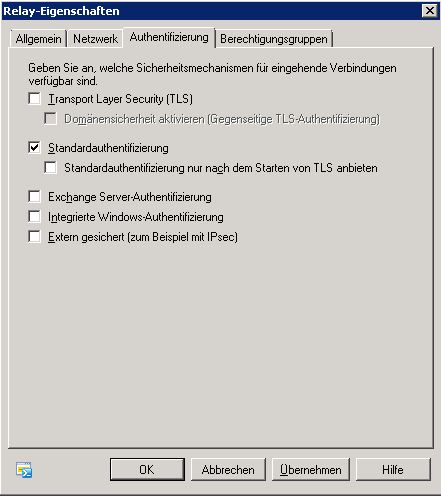
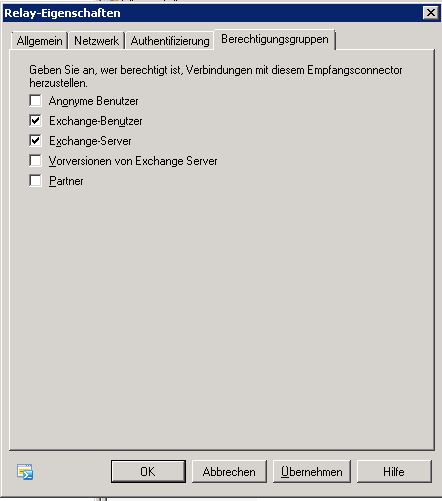
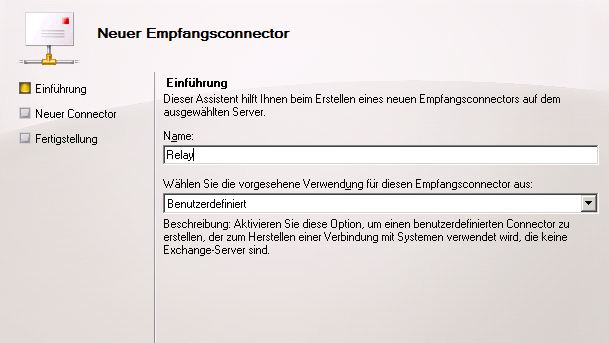
Neuen Empfangsconnector erstellen


KategorienExchange 2010

ESX 4.0 IP-Adresse wechseln

22. September 2011 Keine Kommentare
 
Changing settings from the physical or remote console connection
 
 
Changing the IP for the Service Console must be done from the physical console or through a remote console session. If you make changes through a network connection such as SSH, network connectivity to the Service Console disconnects because the Service Console's network interface changes.
  1. Run this command to set the IP address:

    [root@server root]# esxcfg-vswif -i a.b.c.d -n w.x.y.z vswif0 , where a.b.c.d is the IP address and w.x.y.z is the subnet mask.

    Note: In this example, v swif0 is the Service Console adapter that is the interface to which you are applying the IP address change.

  2. Open the /etc/hosts file with a text editor and modify it so that it reflects the correct IP address and hostname.
  3. To change the default gateway address and the hostname, edit the /etc/sysconfig/network file and change the GATEWAY and HOSTNAME parameters to the proper values.
  4. For the changes to take place, reboot the host or restart the network service with the command:

    [root@server root]# service network restart

    Note: This command breaks any current network connections to the Service Console, but virtual machines continue to have network connection. If the ESX host is managed by VirtualCenter or vCenter Server, you may have to remove and re-add the host to the inventory. For more information, see ESX not working properly in VirtualCenter after IP address change (1005633).

Note: If the changed IP does not persist across a reboot, try deleting and recreating the Service Console vswif management interface. For more information, see Recreating Service Console networking from the command line (1000266).

Changing the hostname without rebooting

To dynamically change the hostname, run the command:
 
[root@server root]# hostname newname


Note: This command creates a temporary hostname change. This change is lost when the system is rebooted.


Changing the DNS server settings
 
To change the DNS server settings, update the nameserver IPs and search domain the /etc/resolv.conf file.
 
Changing settings in VMware vSphere or Infrastructure Client
 
To change the hostname, domain, DNS servers, and default gateway in VMware vSphere or Infrastructure Client:
  1. Highlight the ESX host and click the Configuration tab.
  2. Click DNS and Routing.
  3. Click Properties.
  4. To change the hostname, domain, and DNS servers, click the DNS Configuration tab and enter the appropriate values.


    Note: Disable VMware High Availability if you do not want virtual machines to failover during the hostname IP change.


  5. To change the default gateway, click the Routing tab and enter the appropriate value.
  6. Reboot the ESX host for the changes to take effect.
  7. Reconnect the ESX host to vCenter Server with the new IP address.
KategorienVMware

Diverse VMWare ESX Shell-Befehle

12. September 2011 Keine Kommentare

Nachfolgend eine Liste mit diversen VMware ESX Shell-Befehlen:


Befehl Beschreibung
esxcfg-firewall -q Zeigt alle offenen Ports der Firewall an.
esxcfg-firewall –enableService nfsClient Öffnet für den NFS-Client benötigte Firewall-Ports 111 und 2049 auf TCP und UDP.
esxcfg-firewall –allowOutgoing Alle ausgehende Ports öffnen
esxcfg-firewall –allowIncoming Alle eingehenden Ports öffnen
lsof -Pni zeig alle laufenden Anwendungen (Ports)


KategorienVMware

Exchange 2003: Maximale DB-Grösse von 16 GB auf 75 GB erhöhen

6. September 2011 Keine Kommentare
KategorienExchange 2003

Troubleshooting Error 0x8004010F When Outlook 2007 Clients Download OAB

26. August 2011 Keine Kommentare

This topic provides information about how to troubleshoot error 0x8004010F when  Microsoft Office Outlook 2007 clients fail to download the offline address book (OAB). You may receive the following error message: "Task ‘Microsoft Exchange’ reported error (0x8004010F): ‘The operation failed. An object cannot be found.’

This issue may occur when Outlook 2007 is started on a client that is not a member of a domain. The service connection point is not available to deliver the offline address book, and Outlook tries to locate the Autodiscover service by using Domain Name System (DNS). For Outlook to locate the Autodiscover service by using DNS, there must be a host record in DNS for the Autodiscover service that maps the entry point, or public IP address, to the Client Access server where the Autodiscover service is hosted.
 

To perform this procedure, the account you use must be delegated membership in the local Administrators group. For more information about permissions, delegating roles, and the rights that are required to administer Microsoft Exchange Server 2007, see Permission Considerations.
 

Resolution

To resolve this issue, add a host (A) record in DNS for Autodiscover.domain.com and point to the Exchange 2007 server that has the Client Access server role. For example, if the user’s primary SMTP address is user@contoso.com, the host (A) record you need to add is: autodiscover.contoso.com A <IPaddress>. For more information about adding a host (A) record, see Add a host (A) record to corporate DNS for a federation server.


Quelle:

http://technet.microsoft.com/en-us/library/cc411331(EXCHG.80).aspx


EISA Partition löschen

26. August 2011 Keine Kommentare

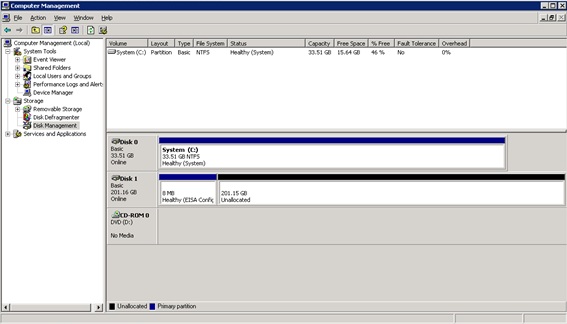
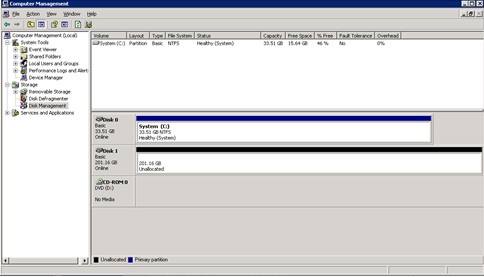
Nach dem Einbau einer Harddisk aus einem anderen System (UNIX) wird auf der Festplatte eine 8 MB Grosse EISA Partiotion angezeigt.

Diese lässt sich nicht über die GUI löschen.

Lösung: via Eingabeaufforderung:


C:\>diskpart


Microsoft DiskPart version 5.2.3790.3959

Copyright (C) 1999-2001 Microsoft Corporation.

On computer: Test-Server

DISKPART> rescan

Please wait while DiskPart scans your configuration…

DiskPart has finished scanning your configuration.


DISKPART> list disk


  Disk ###  Status      Size     Free     Dyn  Gpt

  ——–  ———-  ——-  ——-  —  —

  Disk 0    Online        34 GB  8033 KB

  Disk 1    Online       201 GB   201 GB


DISKPART> select disk 1


Disk 1 is now the selected disk.

DISKPART> list partition


  Partition ###  Type              Size     Offset

  ————-  —————-  ——-  ——-

  Partition 1    OEM               8001 KB    32 KB


DISKPART> select partition 1

Partition 1 is now the selected partition.

DISKPART> delete partition override

DiskPart successfully deleted the selected partition.

DISKPART> exit

Leaving DiskPart…

C:\>


Outlook / Exchange / Active Directory: E-Mail Signaturen zentral pflegen und verwalten

19. August 2011 Keine Kommentare

Ich werde oft gefragt wie sich E-Mail Signaturen für Outlook zentral pflegen und verwalten lassen. Hier gibt es ein kostenloses Programm mit dem man das erledigen kann.

http://zerbit.de/projekte/outlooksignature.aspx

Damit lässt sich beinahe alles realisieren, die Werte für Name, Telefonnummer etc. können dabei aus dem Active Directory importiert werden. Ein bisschen Einarbeitung ist zwar nötig, aber das ist ja meistens so

Exchange 2010 SP1: getrennte Postfächer löschen

19. August 2011 Keine Kommentare

Mit dem Service Pack 1 für Exchange Server 2010 hat sich hinsichtlich getrennter Postfächer etwas geändert. Es gibt ein neues CMDlet mit dem getrennte Postfächer gelöscht werden können. Mit Exchange 2010 ohne Service Pack 1 funktionierte das wie hier beschrieben über “Remove-Mailbox

Seit Service Pack 1 für Exchange 2010 ist nun das CMDlet “Remove-StoreMailbox” hinzugekommen. Das neue CMDlet ist nur für getrennte Postfächer zuständig. Aktive (Online) Postfächer können damit nicht gelöscht werden.

Die Vorgehensweise bleibt wie bei “Remove-Mailbox” zunächst gleich:

Wenn der zugehörige Benutzer zu einem Postfach erst vor kurzem gelöscht wurde, wird das getrennte Postfach nicht direkt in der Liste der getrennten Postfächer in der Exchange Verwaltungskonsole angezeigt. Möchte man nicht warten bis Exchange selbständig nach getrennten Postfächern sucht, kann man das über den folgenden Befehl selbst anstoßen:

Get-MailboxDatabase | Clean-MailboxDatabase

Danach werden die getrennten Postfächer in der Exchange Verwaltungskonsole angezeigt, dort kann man sie zwar wieder verbinden, aber nicht löschen. Löschen lässt sich das Postfach nur über die GUID des Postfachs. Diese kann man sich so anzeigen lassen:

get-mailboxdatabase | get-mailboxstatistics | Where{ $_.DisconnectDate -ne $null } |fl displayName,Identity,disconnectdate,database


Ab hier geht es nun mit dem neuem CMDlet weiter:

Remove-StoreMailbox -database “Name der Datenbank” -Identity “Wert der bei Identity steht” -MailboxState SoftDeleted

Das nachfolgende Beispiel löscht ein Postfach welches den Status “SoftDeleted” hat.

Beispiel:

Remove-StoreMailbox -database “MBDB01″ -Identity “bcfd82dc-0b14-4ee3-aceb-f369159ddbc1″ -MailboxState SoftDeleted


Ein deaktiviertes Postfach löscht man indem man den Parameter “-MailBoxState” auf “Disabled” setzt.

Beispiel:

Remove-StoreMailbox -database “MBDB01″ -Identity “bcfd82dc-0b14-4ee3-aceb-f369159ddbc1″ -MailboxState Disabled


KategorienExchange 2010

Automatische Trennung von Windows-Verzeichnisfreigaben unterbinden

19. August 2011 Keine Kommentare
Auch unter Windows 7 können Sie Ordner für andere Computer im Netwerk freigeben. Allerdings werden den anderen Nutzern die Verzeichnisse nach 30 Minuten als nicht verfügbar angezeigt. Erst nach einigen Doppel-Klicks auf das Verzeichnis im Explorer wird die Verbindung dann wieder hergestellt. Der Vorgang wiederholt sich immer nach einer halben Stunde Leerlauf.
 
Lösung: It is not a bug, it is a feature. Genauer: Nach 30 Minuten schlägt das Auto-Disconnect Feature von Windows 7 zu und trennt die Verbindung.
Die Trennung erfolgt nach einem festgelegten Leerlaufintervall und die ursprünglich freigegebenen Ordner werden im Windows Explorer entsprechend gekennzeichnet.
 
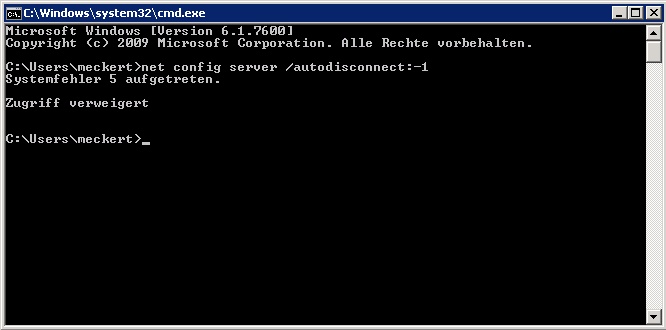
Sie können das Zeitintervall bis zur Trennung entweder selbst festlegen oder die Sichereistfunktion komplett deaktivieren. Starten Sie dazu die Konsole cmd und verwende Sie zum Abschalten der Autotrennung folgende Befehlszeile:
 
net config server /autodisconnect:-1
 
Wenn Sie ein anderes Zeitintervall festlegen wollen (beispielsweise 60 Minuten), dann ändern Sie die Befehlszeile in:
 
net config server /autodisconnect:60
 
Der zulässige Wertebereich für den Parameter in der Befehlszeile beträgt -1 bis 65535 Minuten. Der Wert „0“ deaktiviert Autodisconnect übrigens nicht, sondern führt nur zu einer sofortigen Trennung. Allerdings schaltet er den Remote Access Service (RAS) ab.

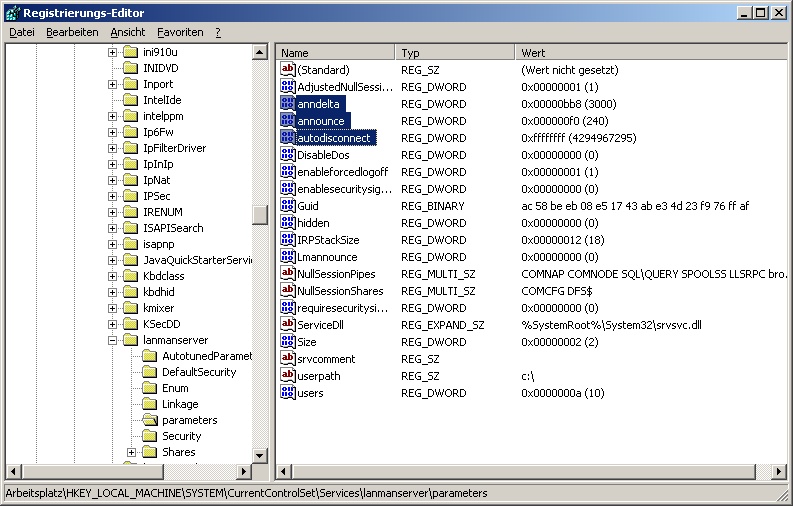
Besonderheit: Wenn die Konsole Ihnen beim Tuning von Autodisconnect mit der Meldung „Zugriff verweigert“ Ihren Änderungswunsch untersagt, dann bleibt der Weg über die Registry. Starten Sie dazu Regedit oder einen anderen Registry-Editor und suchen/öffnen Sie dann den Eintrag

HKEY_LOCAL_MACHINE\System\CurrentControlSet\Services\LanmanServer\Parameters
 
Dort können Sie den Doppelwort-Wert für Autodisconnect ebenfalls ändern. Allerdings sind negative Zahlen nicht erlaubt. Diese Einschränkung gilt allerdings auch für den Konsolenbefehl, der dazu jedoch zwei zusätzliche Registrierungsschlüssel in der Registrierung hinzugefügt und Autodisconnet entsprechend verändert:
 
anndelta: REG_DWORD 0x00000bb8
announce REG_DWORD 0x000000f0
autodisconnect REG_DWORD 0xffffffff


Mehr Infos zur Funktionsweise des Parameters Autodisconnect finden Sie in der Microsoft-Support-Datenbank.
 
Der Trick funktioniert mit allen aktuellen Versionen von Windows.
 

ESX 4.0 Firewall-Regel hinzufügen für ausgehende Kommunikation

12. August 2011 Keine Kommentare

Mit dem nachfolgendem Befehl wird SMTP-Out erlaubt

1) esxcfg-firewall -o 25,tcp,out,SMTP

KategorienVMware